Changelogs
Stay up to date with the latest changes and enhancements.
Stay up to date with the latest changes and enhancements.

Stay up to date with the latest changes and enhancements.
29. Sep 2026
Share
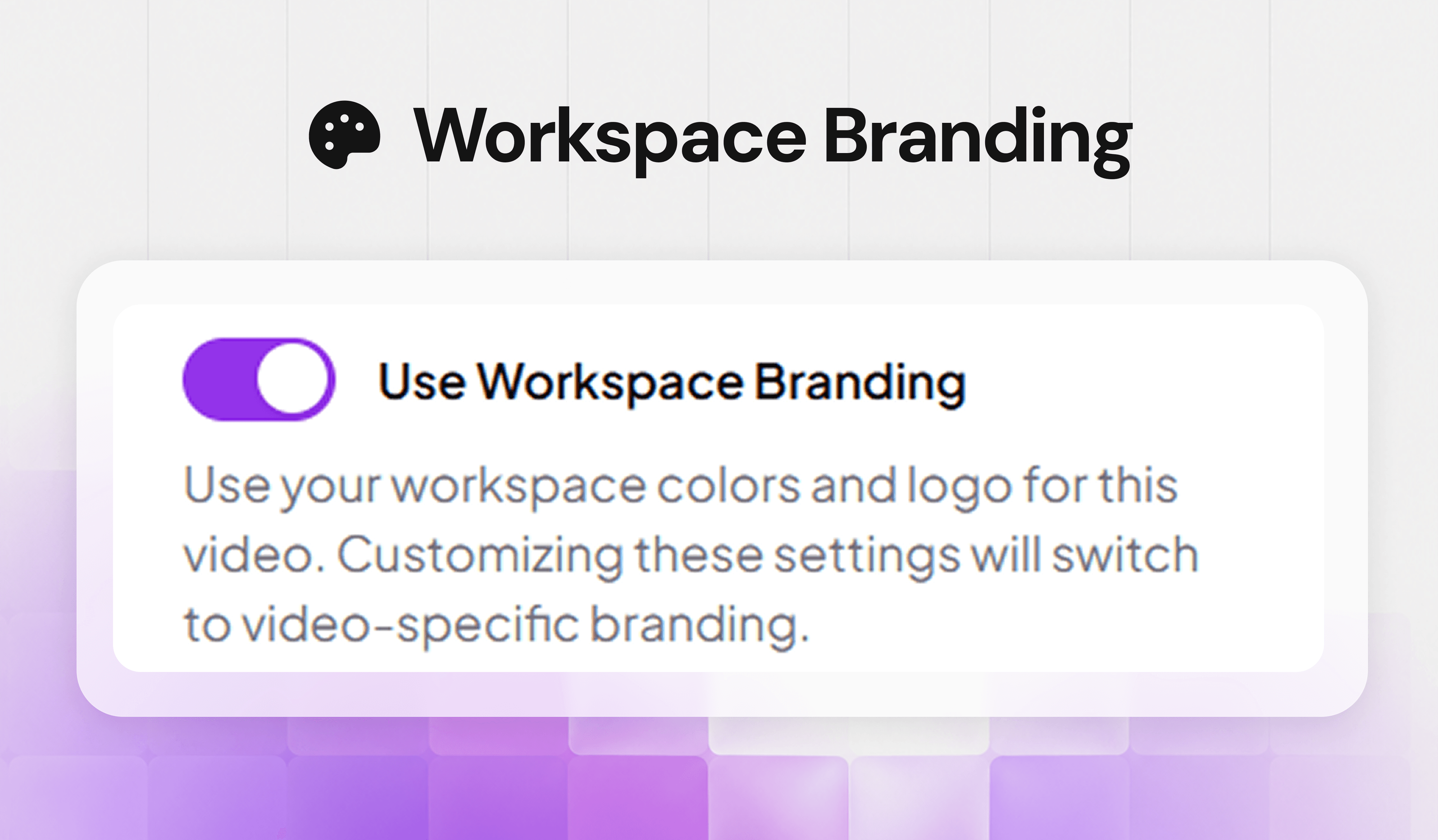
Keeping your videos on-brand just got much easier. Workspace branding can now be brought to videos and playlists you’ve already created, so you don’t have to update each one individually just to keep your experience consistent.
 Bring Your Brand to Existing Content
From the Brand Style , simply enable Use Workspace Branding to apply your workspace’s configured player colors,caption and logos to existing videos and playlists.
No repetitive updates. No going video by video. Just your workspace branding, carried across your content.
 Keep Your Player Settings Consistent
Want your player controls to match your workspace settings too? The Use Workspace Player Settings option lets you apply the player controller configuration from your Branding page to an individual video or playlist.
This gives you an easy way to keep the player experience consistent with your workspace, while still giving you control when needed.
 Works Across Your Video Experience
Workspace branding and player settings can be applied across single videos, playlists, shared videos, and embedded videos, making it easier to keep everything looking and playing consistently wherever your content appears.
 Ready to Try It?
Head to your Branding page and configure your workspace branding and player settings. Then open a video or playlist and enable Use Workspace Branding or Use Workspace Player Settings to bring those settings across.
Set your brand once. Bring it everywhere. Keep every video feeling like Skippz. 

28. Sep 2026
Share
Playlists just got a new way to showcase vertical content. You can now choose between a Standard Playlist for your existing video collections or a Vertical Playlist built specifically for portrait videos.
 Choose the Playlist That Fits
Creating a playlist now gives you two options:
Standard Playlist keeps the experience you already know. It supports both horizontal and vertical videos, making it perfect for mixed video collections.
Vertical Playlist is designed specifically for vertical content. It keeps the experience focused on portrait videos, so only vertical videos can be added.
 Choose Your Player
Just like the Appearance experience, you can choose how your playlist videos are played with two player options:
Custom Player gives you a fully customizable experience with your branding, colors, logo, and player controls.
Default Player provides a clean, purpose built viewing experience without custom branding.
Ready to Try It?Create a new playlist and choose Standard Playlist or Vertical Playlist based on the type of content you want to showcase. Then select your preferred player , Custom Player or Default Player.
Build your playlist. Pick your format. Choose your player. And give your videos the viewing experience they deserve.
25. Sep 2026
Share
Vertical video is now a first-class experience in Skippz. Your portrait videos automatically adapt to their actual aspect ratio .No more horizontal frames, no black bars, and no awkward viewing experience.
Made for Vertical ViewingSkippz now automatically detects and fits your video's aspect ratio, giving vertical content a clean, immersive player built for the way people watch.
Want your brand front and centre? Custom Player gives you a fully customizable experience with your branding, logo, colors, and player controls. Prefer something clean and distraction free? Default Vertical Player gives you a purpose built vertical viewing experience with all the essential controls.
Share It Your WayVertical videos now have an Immersive share experience that puts your video front and centre with minimal distractions. Your existing Skippz branding and share page identity stay intact ,the video simply gets the spotlight.
Prefer the familiar experience? Standard keeps the existing share-page layout with your video, title, description, and surrounding content.
Perfectly Framed EverywhereTake your vertical videos beyond Skippz. Embeds automatically fit the video's actual aspect ratio, so your content looks right wherever you share it. 
Custom Player stays customized, and Default Vertical Player stays default.
Ready to Try It?Upload a vertical video and double-click it to open the Vertical Appearance page. From the Player section, switch between Custom Player and Default Vertical Player to experience both options.
When you're ready to share, hit Share. The share popup lets you choose how your video should be presented.Focused presentation for a focused, vertical first experience or Standard for the familiar Skippz share page.
Upload a vertical video. Pick your player. Choose your presentation. And experience vertical video the way it was meant to be watched. 
15. Sep 2026
Share
Spotlights just leveled up. Deliver a premium, streaming-platform-style viewing experience that feels familiar, immersive, and effortless.
Experience Streaming, UpgradedThe new Streaming Player brings a polished, distraction-free interface built for modern viewing — with auto-hiding controls, smooth interactions, captions, audio switching, Fullscreen, keyboard shortcuts, and intuitive mobile gestures.
 Built for Modern Viewing
Every interaction is designed to feel fast, smooth, and familiar. From seamless controls to fluid video scrubbing, viewers get the high-quality streaming experience they already know and love.
Choose Your ExperienceSpotlights now support two powerful player options:
Streaming Player : a sleek, premium streaming experience.
Custom Player : the flexible player with your existing branding and customization options.
Streaming, by DefaultNew Spotlights now come with the Streaming Player by default. Existing Spotlights remain unchanged, with all Custom Player settings preserved.
 Where to Find It
Choose your preferred player from the Player tab during Spotlight creation or while editing an existing Spotlight.
Give your Spotlight the premium streaming experience and see the difference for yourself. .
15. Sep 2026
Share
Keep viewers focused on your content while they complete their purchase. You can now embed the checkout directly inside your Spotlight instead of sending viewers to a separate payment page.
Turn On Checkout EmbedWith Checkout Embed, viewers can complete payments without leaving your Spotlight.
The experience stays in place, so once the payment is complete, viewers can get right back to watching.
Your Choice, Spotlight by SpotlightCheckout Embed is off by default, so your existing checkout experience stays the same until you turn it on.
You can enable it for individual Spotlights, giving you control over which experiences use the embedded checkout.
Where to Find ItYou can find Checkout Embed in two places:
When creating a new Spotlight, find it in the Creation Wizard → Access Type step.
Open a Spotlight, go to Monetization, and turn on the Checkout Embed toggle.
 Keep the Moment Moving
Let them watch. Let them pay. Let them keep watching.
08. Sep 2026
Share
 GoHighLevel Is Now Available on Skippz
Skippz now supports GoHighLevel, giving you a new way to connect your video forms with your lead management workflow.
Send Your Video Form Leads to GoHighLevelYou can now connect your GoHighLevel account to Skippz and send leads collected through your video forms directly to the GoHighLevel sub-account you choose.
Add tags, connect leads to workflows and You can also continue using webhooks alongside GoHighLevel.
Where to Find ItGo to Settings → Integrations to connect GoHighLevel.
Once connected, open the Video Lead tab and select GoHighLevel from the Integration button.
More Ways to Work With Your LeadsCollect leads with Skippz. Connect them to GoHighLevel. Keep your follow-up moving.
07. Sep 2026
Share
 Email Embed & Custom Embed Size Options
Embedding videos on Skippz just got more flexible.
You can now embed videos directly into email campaigns.
You can also customize the size of your regular video embeds. 
Embed Videos in EmailsSkippz now supports Email Embed for popular email platforms.
Select the email platform you use:
Gmail
Outlook
Mailchimp
AWeber
ActiveCampaign
Then, copy the generated embed link.
Add your video to your email campaigns with ease.
Customize Your Embed SizeYou can now Customize the size of your video embeds.
Set your preferred width and height before copying the embed code.
Your selected dimensions will appear correctly in:
The generated embed code
The embedded video
The default embed size remains available when no custom size is selected. 
Getting StartedWant to get started?
Simply open a video and choose Embed .
You can also access Embed from the video card dropdown ⋮.
More Control. Better Embeds.Choose where your videos appear.
Customize the size of your embeds.
Add your videos to email campaigns with ease.
Embed Your Way.More platforms. More control. Better flexibility.
04. Sep 2026
Share
Select More. Upload More.Uploading videos on Skippz just got easier.
You can now select multiple videos at once and upload them together no more selecting and uploading videos one by one.
Select Multiple VideosHave multiple videos ready to upload? Select them all at once.
The Skippz Uploader now supports multiple video selections with no limits, making it easier and faster to upload batches of content.
Clear Completed Uploads All at OnceOnce your videos are uploaded, simply click “Dismiss All” to clear all completed uploads at once.
No need to dismiss each upload individually.
 Your Ongoing Uploads Stay Safe
“Dismiss All” only applies to completed uploads.
Any videos that are still uploading will continue normally and won’t be dismissed or interrupted.
One Click. Multiple Uploads.Upload multiple videos together without the hassle of repeating the same process for each video.
One Selection. Multiple Videos.Less selecting. Less clicking. More uploading.
The improved Skippz Uploader makes uploading multiple videos simpler, faster, and more convenient right from the start.
02. Sep 2026
Share
Single Video Page Give every video its own destinationYou can now share individual videos from your Pay Per Video Spotlight with a dedicated Single Video Page.
Instead of sending viewers through your entire Spotlight, simply share a direct link to the video you want them to watch.
 A simpler way to watch
Give your audience the flexibility to choose how they want to access your content:
 Rent the video for 24, 48, or 72 hours
 Purchase the video permanently
Watch instantly if they already have access
 For rentals, the viewing period starts when the viewer presses Play for the first time not when they purchase the rental.
 See what happens after you share
Get dedicated analytics for each shared video and understand how your content performs.
Track:
 Views
Views
Rentals
 Purchases
 Revenue
 Audience activity
 Use filters to explore your data and quickly find the insights that matter most.
 Control the experience
The Video Page tab gives you dedicated settings for your Single Video Page.
These settings are separate from your main Pay Per Video Spotlight, so you can manage the experience for an individual video without affecting the rest of your content.
Ready to give your videos their own page?You’ll find the new Video Page option inside your Pay Per Video settings.
 Open Spotlight, head to Monetization, and select Pay Per Video. There, you’ll find the new Video Pages toggle waiting for you.
Turn it on, share the link, and send your audience straight to the video.
One video. One link. More possibilities. Share it. Let viewers choose how they watch. Track how it performs.
Whether you want to promote a single video, reach a specific audience, or make purchasing easier, the Single Video Page gives every video its own space.
02. Sep 2026
Share
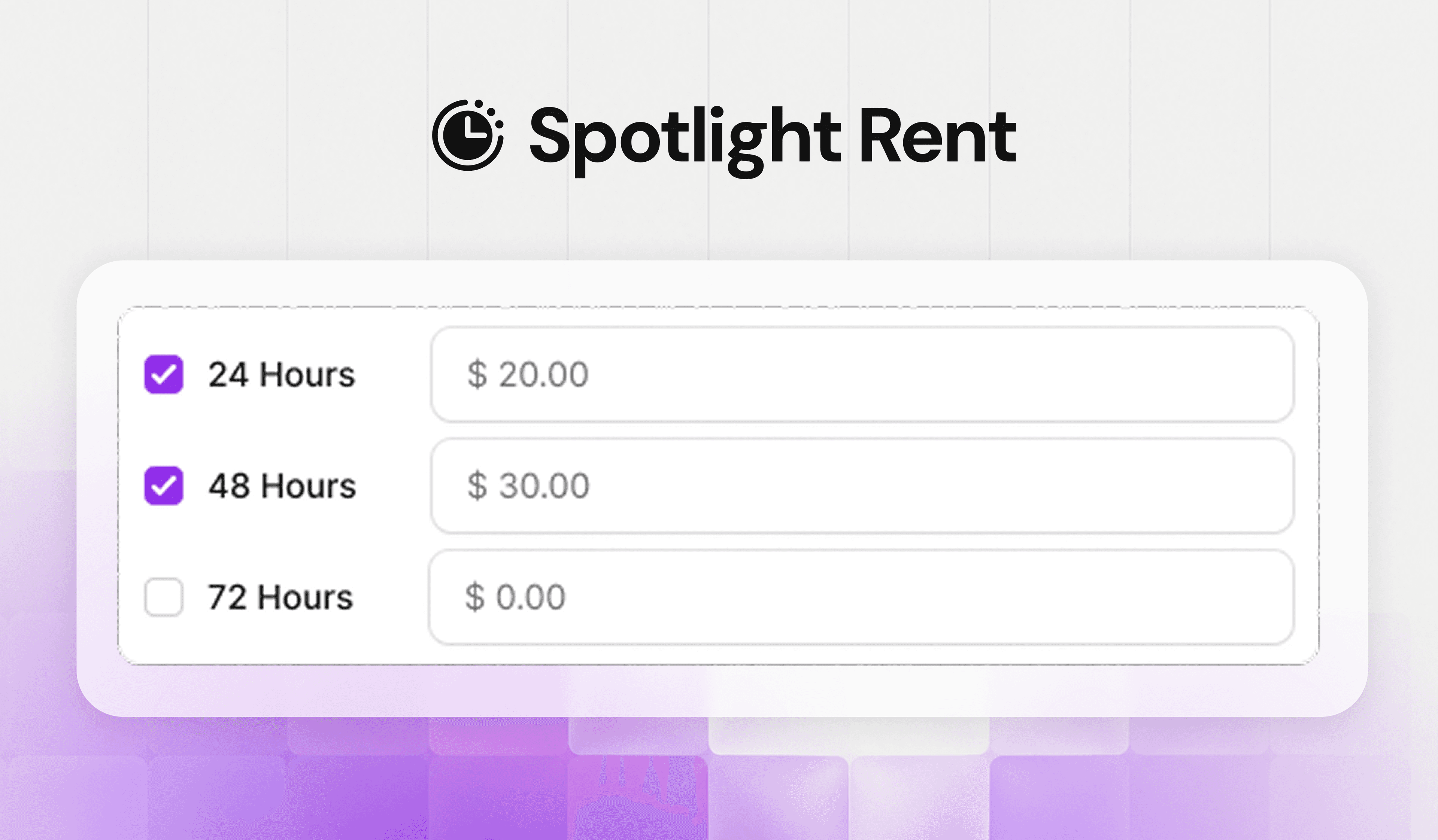
Spotlight Rental Is HereWe’re excited to introduce Spotlight Rental a new way to give viewers temporary access to your paid content without requiring them to purchase it permanently.
Give your audience more freedom to rent, watch, and enjoy your content on their terms.
Rent Spotlights or VideosWith Pay Per Spotlight, viewers can rent an entire Spotlight.
With Pay Per Video, they can rent individual videos .
Flexible Rental PeriodsChoose 24, 48, or 72 hours for each rental.
The rental period starts when the viewer first presses Play, giving them control over when their rental begins.
 Give Viewers Time to Start
Set a Start-Watching Window to give viewers time to begin their rental.
For example, a 7-day window gives them 7 days to start watching before their rental period begins.
Clear Rental & Purchase TrackingViewers can see rentals and purchases separately on the Billing page.
Creators can track rentals, purchases, views, and revenue separately in Analytics.
Getting StartedSpotlight Rental is available for Pay Per Spotlight and Pay Per Video.
Configure your Rental Period and Start-Watching Window from your Spotlight Settings.
More Ways to Watch. More Ways to Monetize.This is just the beginning.
Spotlight Rental gives viewers more choice while giving creators another way to monetize their content.